Learn how to recognize and report phishing
Last updated June 27, 2025
Phishing is a form of fraud where a scammer attempts to have you reveal personal financial or confidential information by posing as a reputable entity in an electronic communication. Many scammers try to bait you by urging you to open an attachment or to respond immediately by clicking a web link that appears official (with all the familiar logos or corporate phrases). Even if the request looks genuine, be skeptical and look for these warning signs:
How to recognize phishing attempts
- The message is unexpected and asks you to update, confirm or reveal personal identity information (e.g., full Social Security Number, account numbers, NetID, passwords, protected health information).
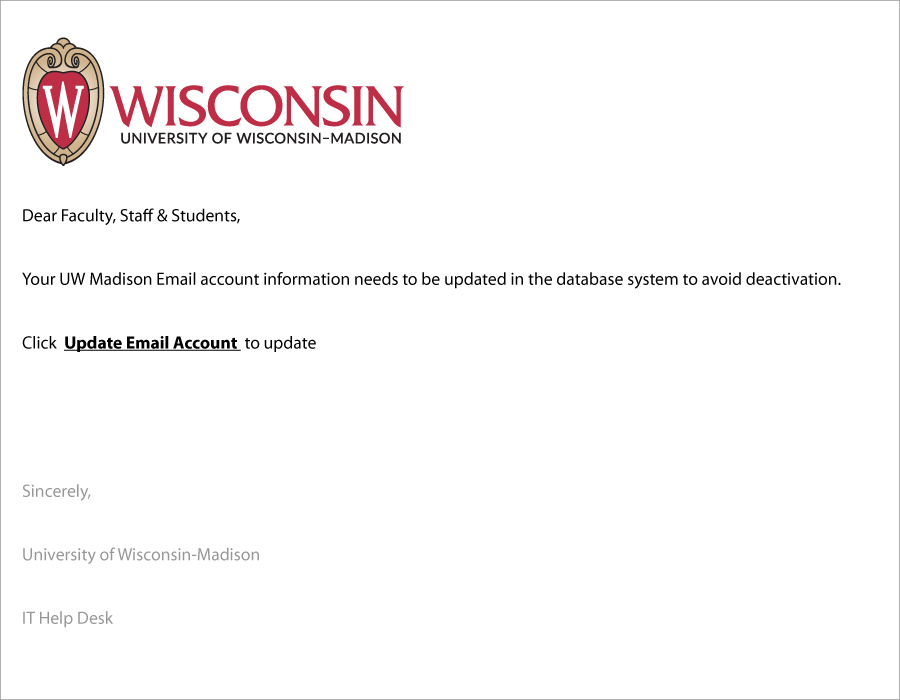
- The message creates a sense of urgency.
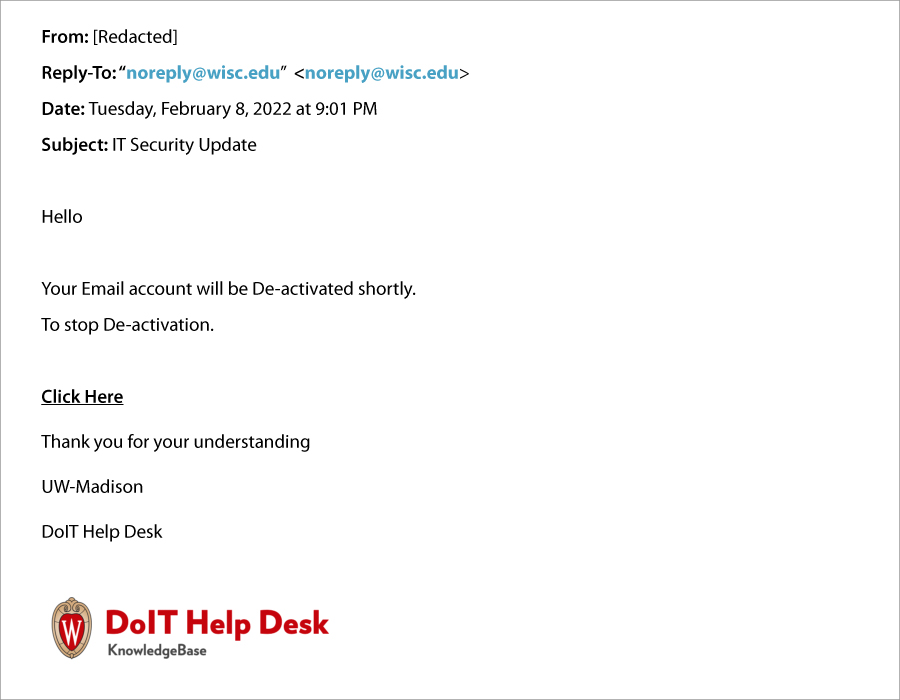
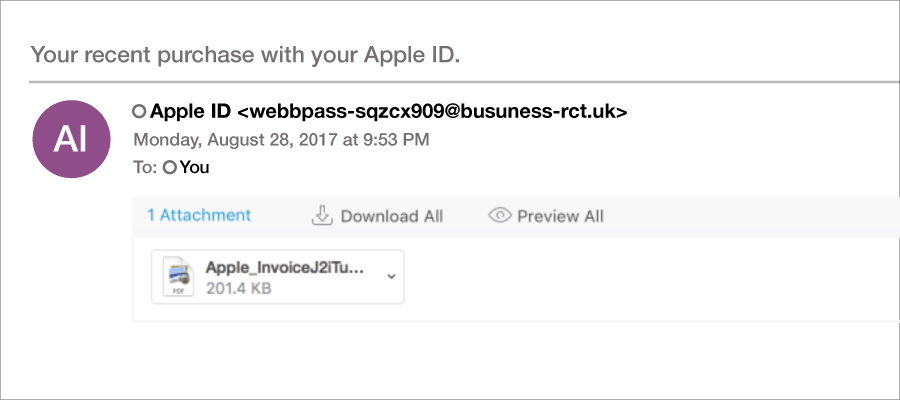
- The message may include an unusual “From” address or an unusual “Reply-To” address, it may even be a compromised “@wisc.edu” address. If you receive an email from someone you don’t normally communicate with (even if it’s from a @wisc.edu address), pay special attention to the other ways to detect its legitimacy.
- The message includes links that don’t match the name of the organization that it allegedly represents. For example, the URL “https://wisc.edu” could be slightly changed to read “https://wIsc.edu.”
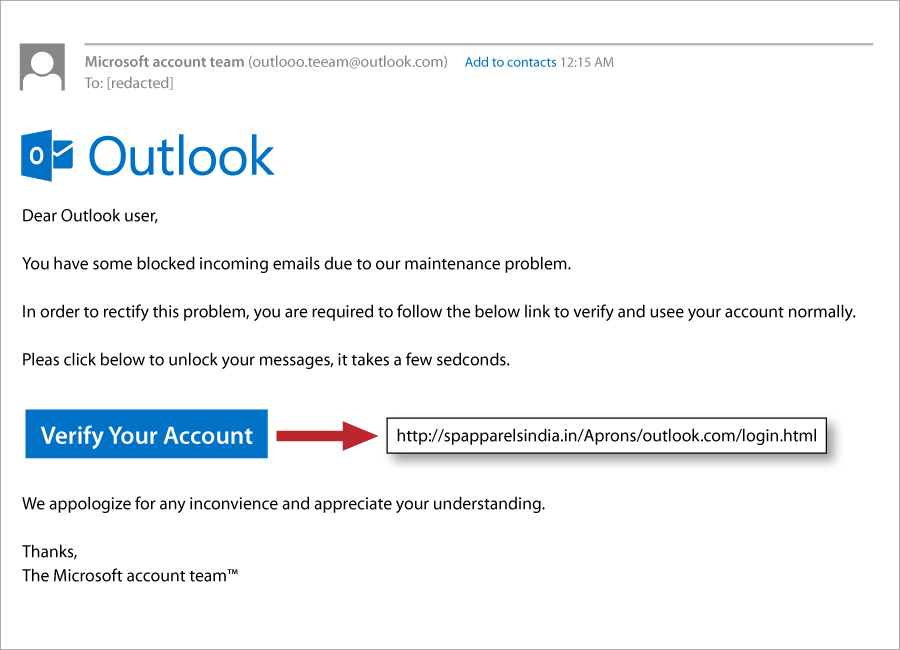
- The message includes grammatical errors (although scammers are getting better at this).
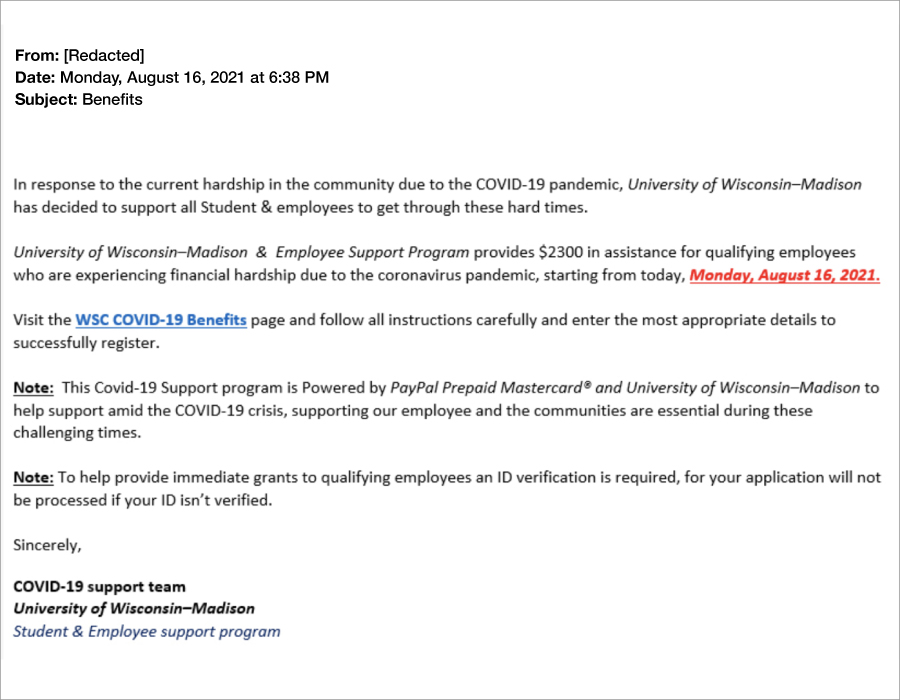
- The message is unexpected and offers an unbelievable job opportunity with great salary and perks. Yes, it’s too good to be true. This is a job scam.
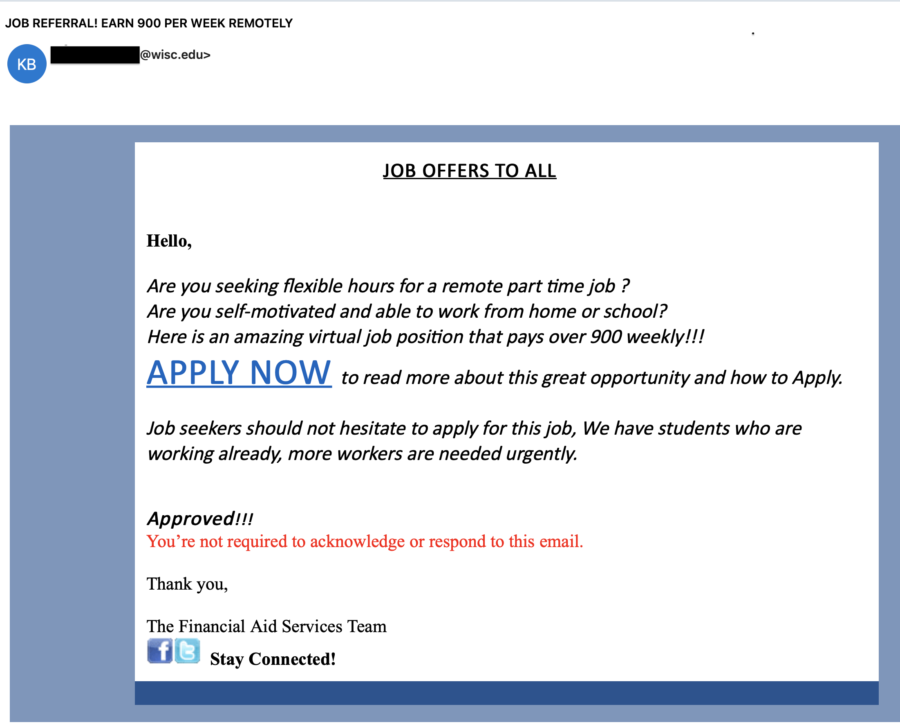
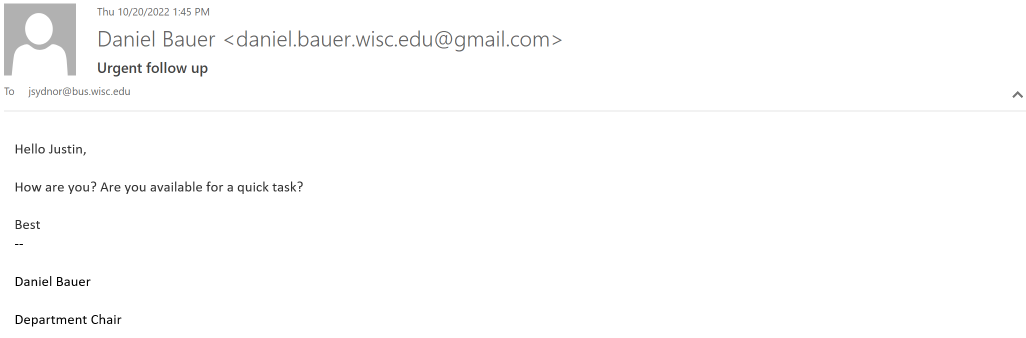
- The message impersonates a university leader or colleague. The email asks an employee to contact them for an urgent or important task. That “urgent task” is likely a request to perform an action that results in monetary loss to the employee or the university or to reveal confidential information. Always follow university policies when you receive an usual purchase request. This type of phishing is called a Business Email Compromise (BEC).
FAQs
|
A Uniform Resource Locator or URL is a web resource that specifies its location on a computer network. It’s normally displayed in the address bar at the top of a browser in the following format:
https://www.it.wisc.edu/learn/securing-your-computer/
Here are the parts of this URL:
- https:// = Protocol
- www. = Host name
- it.wisc.edu = Name of site
- /learn/ = Directory path
- securing-your-computer/ = Absolute path
Take your cursor and place it over the top of the hyperlink (without clicking). The hyperlink’s destination will appear on your computer screen.
For example: hover over this hyperlink: Securing Your Computer (Source: it.wisc.edu). The source states it’s from “it.wisc.edu”. As you hover over it you should see the following URL address on your computer screen: https://sandbox.it.wisc.edu/learn/securing-your-computer/
- Launch Safari on your Mac.
- Go to View > Show Status Bar.
- The URL-peeking Status Bar should now appear at the bottom left of the window any time you hover over a hyperlink on the web page.
- Open a page in Safari on your iPhone or iPad.
- Tap and hold any link on the page.
- If you’re running iOS 13, iPadOS 13, or higher, you will see a thumbnail preview of the page pop-up. To preview the URL instead, tap the “Hide Preview” button located at the top of the pop-up window.
- To preview a link, simply tap and hold.
- You can toggle this feature on or off via Settings > Link Preview.
- Go to any link on a web page and tap and hold on it until a menu pops up.
- Select the “Preview page” option from the list. A preview will open up and show at the very bottom of the screen.
- To fully open the preview, you can either tap on it or swipe upwards from the bottom.
Outlook users:
To report phishing emails received via Outlook, please click the “Report Suspicious” button (images shown below) in the top ribbon/toolbar, or click the ellipses (…) to expand a drop-down menus to see the new add-in. This action will send the questionable email to the security team for review. or
or 
Non-Outlook users:
If you use a non-Microsoft supported email client (e.g., Thunderbird, Apple Mail, Android/iOS native mail, etc.) or an older version of Outlook (2007/2010/2013) you should simply forward the suspicious message to report-spam@doit.wisc.edu. For additional information, please refer to: Microsoft 365 – Report Suspicious message (Source: KB 45051). If you are ever unsure whether an email message is legitimate, or what you should do with it, do not respond to it! Instead, contact the Help Desk (Source kb: wisc.edu) for advice.- Helps you avoid viewing potentially offensive material (when external content is linked to the message).
- Helps to keep malicious code from damaging the data on your computer.
- If you are on a low-bandwidth connection, blocking allows you to decide whether a particular image warrants the time and bandwidth that are required for downloading it.
“Outlook on the web” is when you access Office 365 from a browser (i.e., Chrome, Safari, Firefox, etc.). Fortunately, there is not a global setting to always download images/pictures for every message. Instead, you will see the message below and manage this option for every email or add the message sender to your safe sender’s list.  Once you select, “I trust content from …..” all future email images/pictures from that sender will automatically download.
Once you select, “I trust content from …..” all future email images/pictures from that sender will automatically download.
When viewing an email that contains images/pictures either within your preview window or its own window, you will have the option to either load the image/picture or add the sender to your safe sender’s list. Right click to download pictures or to add sender to safe sender’s list.

- On the Outlook menu, click Preferences
- Under Email, click Reading
- Next to Download external images, select Ask before downloading
Related docs
More Guides on Cybersecurity Topics (Source: it.wisc.edu)